 English
  日本語
日本語  Deutsch


Quick Comparison Snapshot
|
Attribute |
STL |
OBJ |
3MF |
|
Geometry |
Triangle mesh only (vertices + normals) |
Triangle mesh with vertex normals and UVs |
Triangle mesh plus richer structure and metadata |
|
Color & textures |
None |
Yes, via external MTL and image files |
Yes, embedded and packaged inside the file |
|
Materials & metadata |
No metadata (units not guaranteed) |
Very limited (MTL provides basic material refs) |
Rich metadata: units, materials, part grouping, printer settings |
|
File packaging |
Single simple file |
Multiple files (OBJ + MTL + images) unless zipped |
Single packaged file (everything bundled) |
|
Compatibility |
Highest (every slicer and service) |
Very wide (graphics and modeling tools) |
Growing rapidly; best for modern manufacturing pipelines |
|
Best for |
Single-color prints, mechanical parts, universal uploads |
Textured/color models for visualization and art |
Full-color, multi-material, production workflows with metadata |
What is STL?
STL (stereolithography) is the long-standing workhorse of 3D printing. It represents an object’s surface as a mesh of triangular facets. Each triangle is defined by three vertices and a normal vector.
Advantages
• Extremely widely supported by slicers and services.
• Simple format, easy to inspect and repair with common tools.
• Well-suited for mechanical parts and single-color prints.
Limitations
• No color, texture, or material information.
• No guaranteed unit metadata, can cause scale errors if export settings are wrong.
• Triangular meshes can get large when representing smooth curves at high fidelity.
When to Use STL
Hobby FDM parts, functional prototypes, and situations where compatibility matters more than color or material metadata.
Export Tips
• Ensure the model is manifold and watertight.
• Confirm units (mm is typical) before export.
• Balance mesh resolution: enough triangles for detail, not so many that the file becomes unwieldy.
What is OBJ?
OBJ is a flexible geometry exchange format popular in graphics and modeling. An OBJ file stores vertex positions, normals, UV coordinates, and face definitions. Materials and textures are typically stored in an accompanying .mtl file with external image maps.
Advantages
• Supports normals and UV mapping, so it preserves shading and texture information.
• Easy to export from sculpting and modeling tools.
• Common in game/film pipelines and for textured color prints.
Limitations
• Textures and materials are external files — they can be misplaced if not packaged properly.
• No standard way to carry printer-specific metadata or complex part relationships.
• Can become less portable unless you zip the OBJ + MTL + images.
When to Use OBJ
• When UVs and texture maps are essential (art prints, visual models).
• When the receiving pipeline expects separate texture assets.
Export Tips
• Export OBJ, MTL, and images into one folder and zip them for upload.
• Use relative paths in the MTL file, not absolute paths.
• Verify UVs, normals, and scale in a viewer before sending.
What is 3MF?
3MF (3D Manufacturing Format) was designed specifically for modern 3D manufacturing. It packages geometry, colors, materials, and metadata into a single XML-based file. It can carry multiple parts, build metadata, and even some printer-specific settings.
Advantages
• Everything in one file: geometry, color, materials, part relationships, and metadata.
• Compact and built for manufacturing workflows.
• Reduces errors from missing external assets.
Limitations
• Not every legacy tool fully supports every 3MF feature yet.
• Some older slicers or services may ignore advanced metadata.
• A few niche features may be handled inconsistently across software.
When to Use 3MF
• Full-color or multi-material prints where you want an all-in-one package.
• Professional or automated workflows that benefit from embedded metadata and part grouping.
Export Tips
• Confirm the target service/slicer supports the 3MF features you rely on.
• Use 3MF for complex assemblies to reduce the chance of lost textures or misapplied materials.
• Preview the 3MF in a compatible viewer before upload.
STL vs OBJ vs 3MF
Geometry Fidelity
All three can represent accurate geometry.
• STL uses only triangles and often needs a higher triangle count for smooth curves.
• OBJ preserves normals and UVs.
• 3MF can store richer relationships and metadata, which can help with multi-part fidelity.
Color, Texture, and Material Handling
• STL: none.
• OBJ: supports textures but requires external files (MTL + images).
• 3MF: embeds colors and materials, the safest for color prints.
Metadata and Manufacturing Info
• STL: none.
• OBJ: minimal.
• 3MF: rich (units, assemblies, print instructions).
Portability and Packaging
• STL: single file, minimal data.
• OBJ: multiple files, must zip to preserve all assets.
• 3MF: single packaged file with all assets.
Compatibility
• STL: universal.
• OBJ: widely supported, especially in creative pipelines.
• 3MF: becoming standard in manufacturing; excellent when supported.
Rule of Thumb
• STL for universal, single-color prints.
• OBJ when textures/UVs matter and you can bundle assets.
• 3MF for modern, professional, multi-material or color workflows.
Real World Scenarios and Recommended Formats
1. Hobby FDM Single-Color Print
Recommended: STL. Universal support, straightforward.
2. SLA Resin Prototype or Functional Part
Recommended: STL. Geometry precision is the priority.
3. Full-Color or Textured Art Print
Recommended: 3MF (if service supports it) or OBJ (if service expects OBJ). Use 3MF when possible for a single packaged file; otherwise, zip OBJ+MTL+textures.
4. Production Run with Automation and Metadata Needs
Recommended: 3MF. Carries part grouping and builds metadata useful in automated pipelines.
5. Game Asset or Visual Model Delivery
Recommended: OBJ. Preserves UVs and textures for rendering workflows.
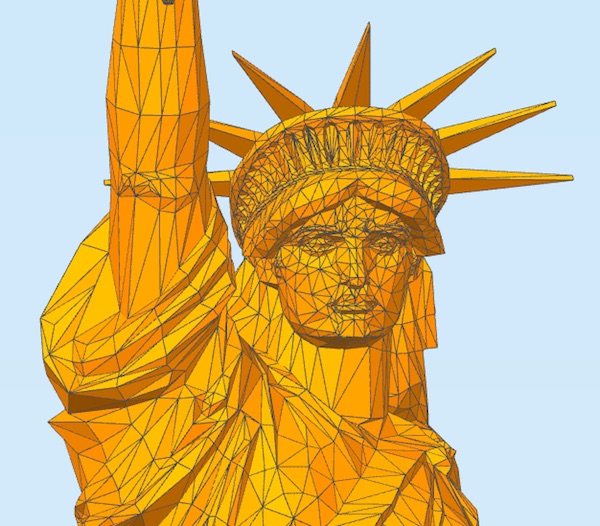
Image Source: Simplify3D
How to Prepare Your File before Upload
• Check units and scale: export in the units expected by the service (usually millimeters).
• Make the mesh manifold and watertight: close holes, remove non-manifold edges, fix inverted normals.
• Clean topology: remove duplicate vertices and stray geometry.
• Apply transforms: freeze rotations/scales so the exported geometry matches the workspace.
• Bundle textures for OBJ: include OBJ, MTL, and image files in a single zip. Use relative paths.
• Validate in a viewer or slicer: open the file and confirm scale, textures, and integrity.
• Name and compress clearly: use descriptive filenames and zip multiple files when allowed.
Troubleshooting Common Problems
Holes or Missing Faces in the Print
• Likely cause: non-manifold geometry or holes.
• Fix: run mesh repair (Meshmixer, Netfabb, or Blender’s mesh tools), re-export.
Scaling Errors after Upload
• Likely cause: unit mismatch.
• Fix: check export units, or set correct units in the slicer before slicing.
Missing Textures with OBJ
• Likely cause: texture files not uploaded or wrong paths in MTL.
• Fix: zip OBJ+MTL+images together; ensure relative paths in MTL.
Color Not Appearing from 3MF
• Likely cause: service doesn’t support embedded color or expects specific channels.
• Fix: check service documentation, export in supported color modes, or ask support.
Huge File Sizes for High-Detail Meshes
• Fix: decimate/reduce triangle count with a controlled decimation tool or export with lower tessellation if fine detail isn’t required.
 0
0


COMMENTS
- Be the first to share your thoughts!